

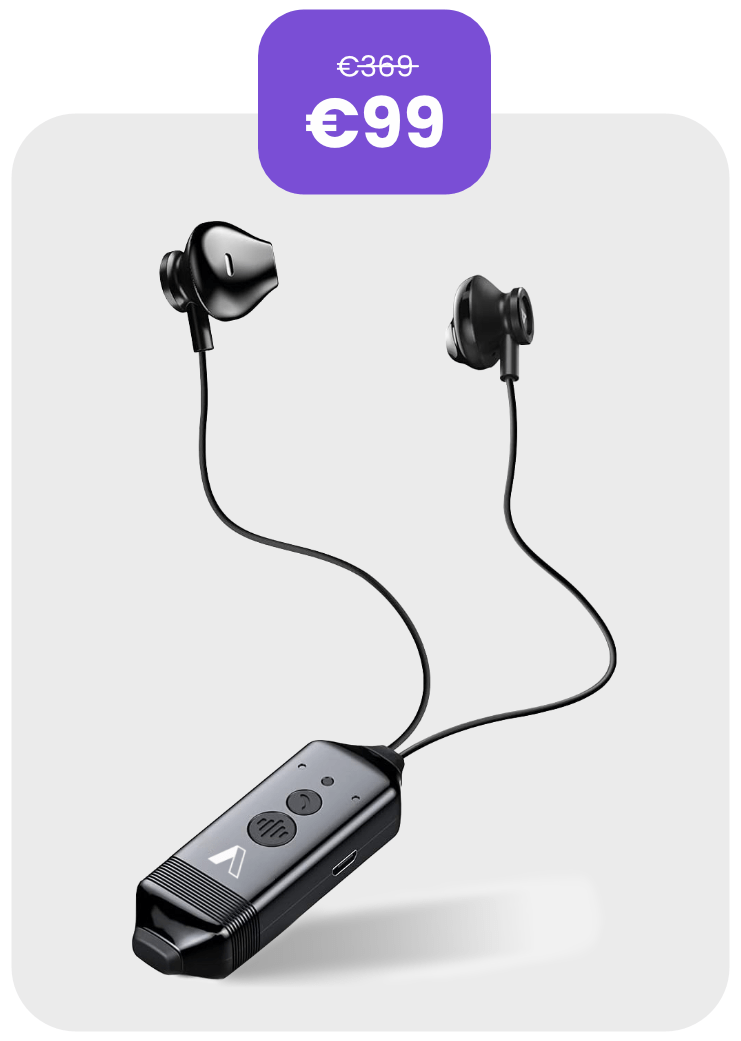
Actionpoint Special Offer
for Web Summit 2025

BUNDLE: ActionCall Headset
+ 6 Months of Pro Subscription

What is ActionCall?

A smart Bluetooth headset that automatically records every call. Connect it to your laptop and all calls are uploaded to ActionPoint, transcribed, summarized and securely stored — ready to search anytime.

How to get your device:

Pick up your ActionCall device right at our booth!

Get started

📖 Quick Guide for ActionCall

ActionCall is a Bluetooth headset that works just like a regular call headset — but with a major advantage: it automatically detects phone calls and records them, saving the audio on the device. These recordings can then be uploaded to ActionPoint for transcription and organized in your projects.

1. PAIRING THE HEADSET
  • Power on ActionCall by pressing the power button.
  • Go to the Bluetooth settings on your phone or laptop.
  • Look for the device named WT-RS1 and select Pair / Connect.
  • You can now use it as a normal headset for calls.
2. Call Recording
  • ActionCall (WT-RS1) automatically detects when a call starts (incoming or outgoing).
  • It records both your voice and the other party’s voice.
  • Recordings are saved locally on the headset’s internal memory.
  • There’s no need to start or stop recording manually.
3. Integration with ActionPoint

To automatically upload recordings to ActionPoint, download the integration package here:

4. Transcription in ActionPoint
  • Once uploaded, the audio files appear in your Meetings list in ActionPoint.
  • Transcription is not automatic — you need to trigger it manually for each file.
  • This gives you full control over which recordings you want to transcribe.
TIPS

Always run the app from the device before connecting it to your computer.

Keep the ActionCall (WT-RS1) device charged for optimal performance.

Make sure you are logged into your ActionPoint account before uploading.

Organize your recordings into projects for easier search and retrieval.

Web Summit® is a registered trademark of Connected Intelligence Limited. Used for reference only. ActionPoint is an independent exhibitor and not affiliated with Web Summit.

  • You will find 2 ZIP archives:
    – one for Windows
    – one for Mac (coming soon)
  • Choose the archive for your operating system and extract the files directly onto the ActionCall device (it appears as a USB drive).
  • Each archive contains:
    – an executable file
  • Connect the device to your laptop using the included USB cable.
  • Copy the executable on the ActionCall device and run the executable directly from it (it does not need to be installed on your computer).
  • Open your browser and make sure you are logged into your ActionPoint account.
    – If you are not logged in, you will be prompted for login
  • The app running on the device detects your active ActionPoint session in the browser and automatically uploads the recordings to your account.